Setup & Support
OVERVIEW
GUIDE
HELP
Menu Overview
Digital menu showcasing dishes with clarity and appeal
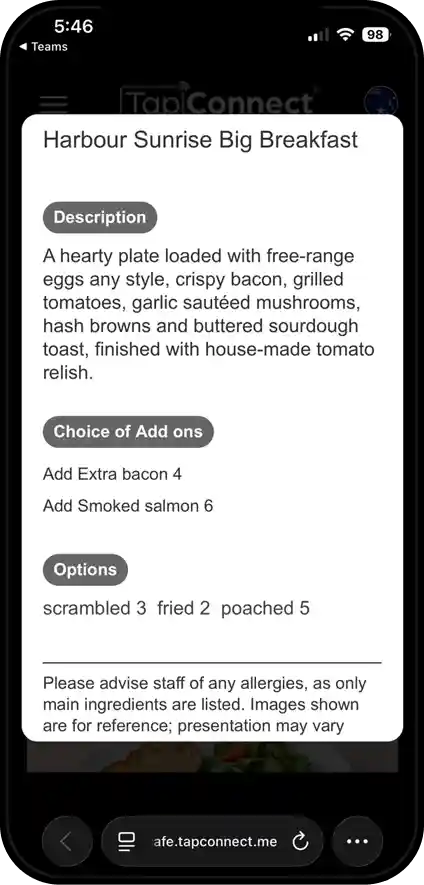
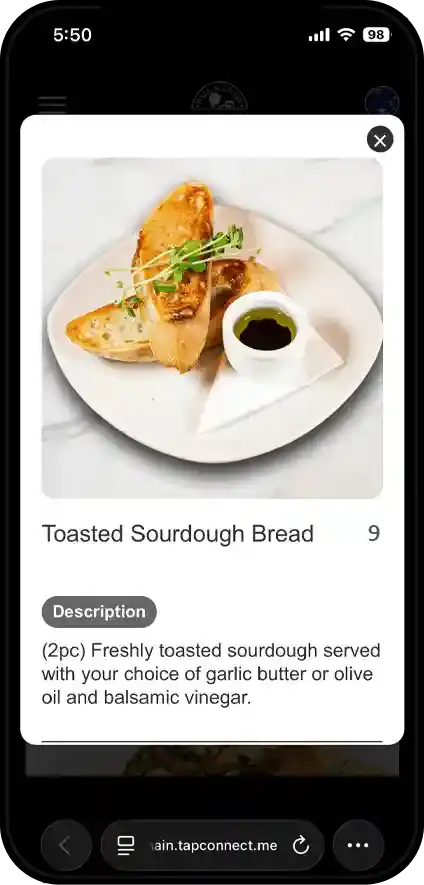
Item Details
Description, ingredients, and other relevant details.
Share TapMenu
Clear images and info, ready to share
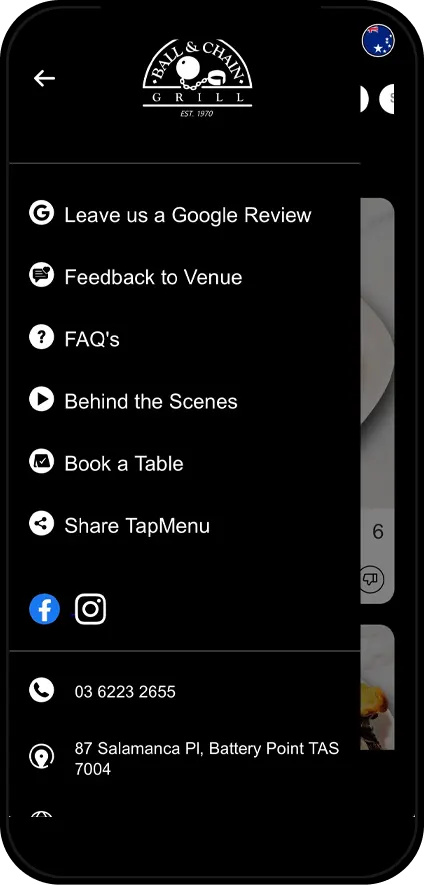
Venue Links & Info
Setup venu information via admin
Contact us below for admin support
Customer Engagement:
Leave us a Google Review
Feedback to Venue
Share TapMenu
Information & Support:
FAQs
Venue Video
Bookings & Contact:
Book a Table
Contact
Address
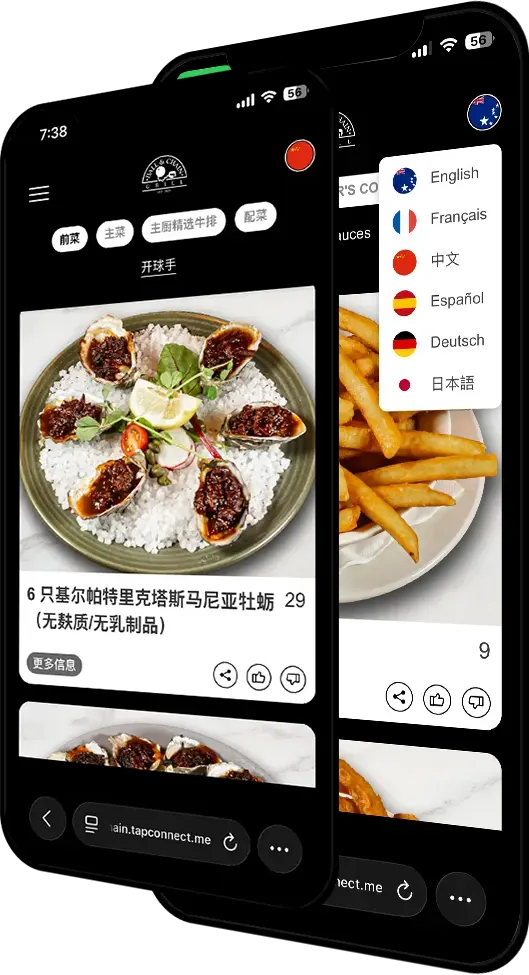
Instant Language Change
Tap the flag to change the language instantly
Multi-Language Support
Default language view
Instant translation
One tap change
Help foreign tourists navigate and select items with confidence
TapMenu in the TapConnect App
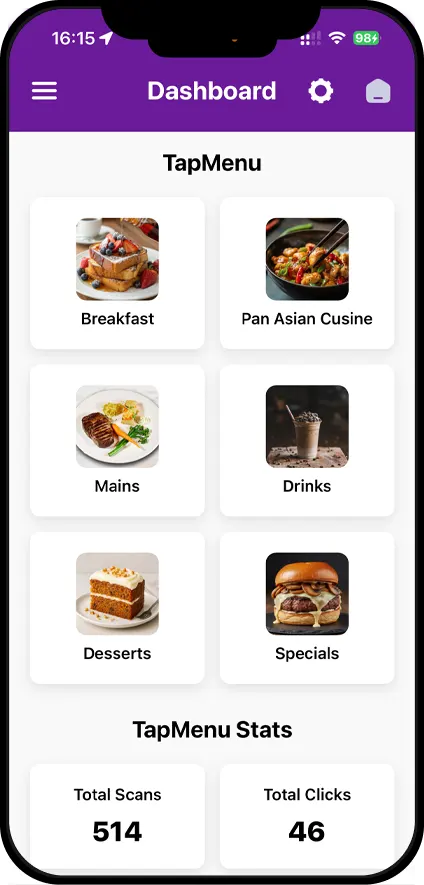
TapMenu Dashboard
This is your control room
View Main Menu Categories and choose which one to Edit, Manage and Update.
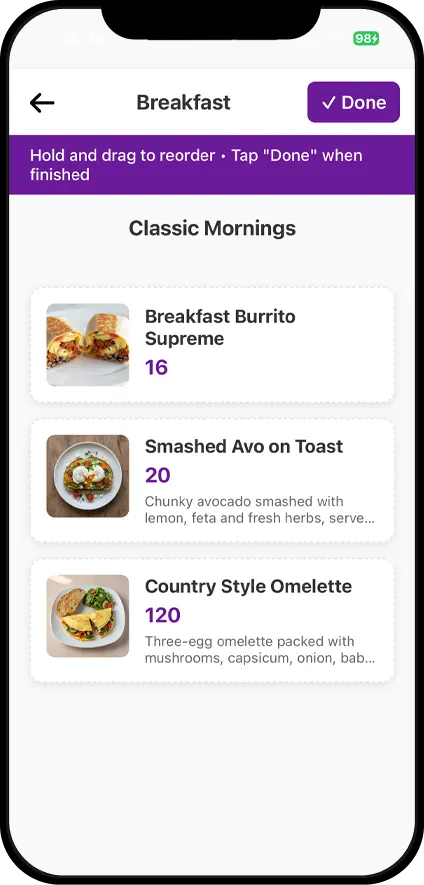
Archive & Rearrange Menu Items
Archive items to hide, and select rearrange option to restructure TapMenu.
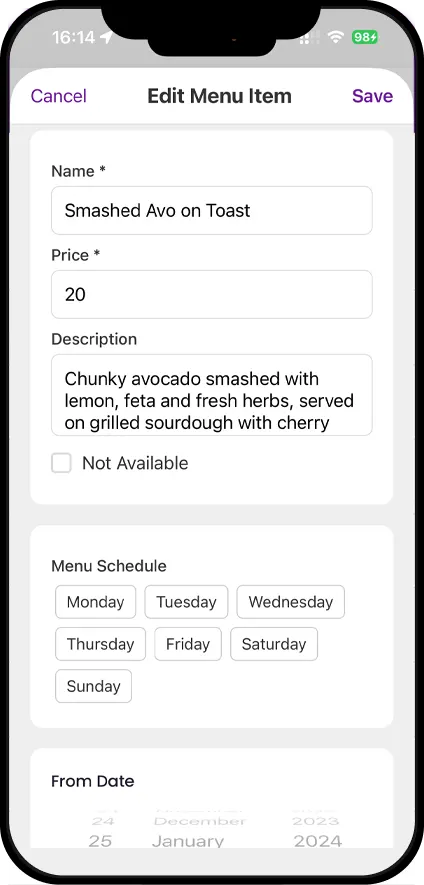
Edit and Manage Menu Items
Item name
Price updates
Descriptions and ingredients
Availability (show/hide items)
Photos
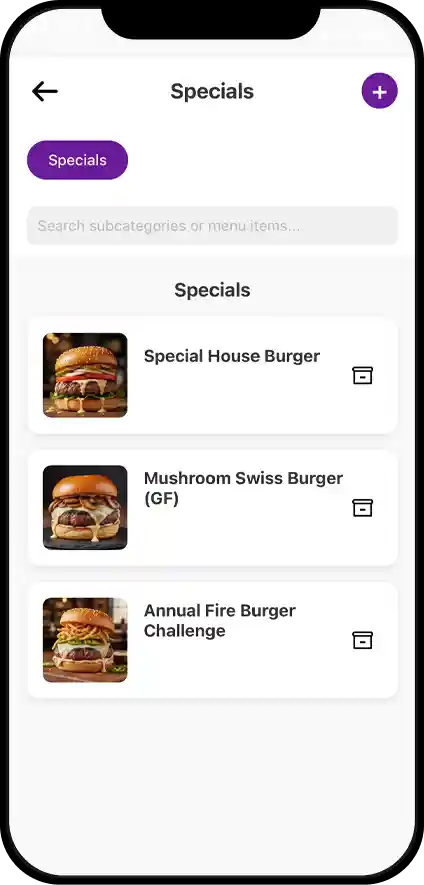
Create and Add Specials
Steps to add a special:
1. Select Category (*Only categories enabled as 'Specials' in admin support images)
2. Tap the Plus on top
3. Name the item clearly
4. Write Description (Detail ingredients and dietary info)
5. Enter Price
6. Add Photo
7. Save & Publish
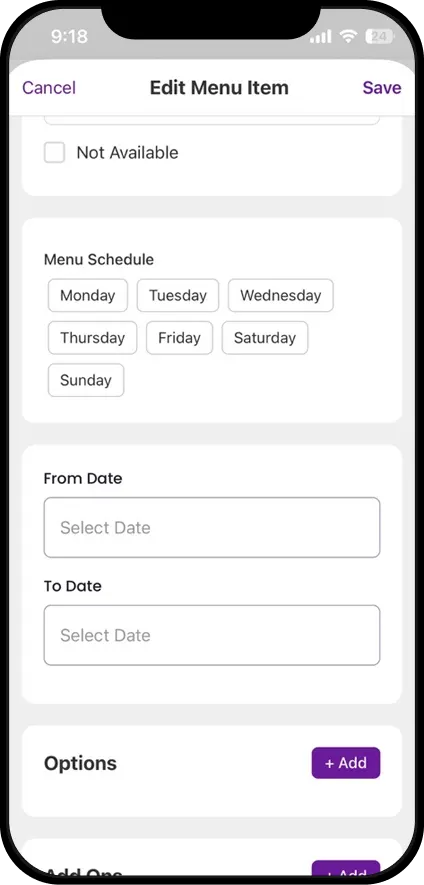
Menu scheduling
Set when an item shows up:
1. Schedule a Dish
2. Set up special menus. Plan your specials.
3. Select the Dish
4. Choose the Date (e.g., Weekdays, weekends)
5. Set the Duration
6. Save
Stats
See what customers like
Scroll down on the Dashboard to view:
Scans
Clicks
Likes
Items shared
Languages
Socials & Links
TapMenu Support
Need Help With
Rearranging categories, updating images, managing venue info, or Admin updates?
Get in touch with TapMenu support or Contact via Tapconnect@1tech.com.au
Name
Email
Message
Send
tapconnect@1tech.com.au
1300 82 72 92 (1300 TapAway )